


Total Cleaner: Home Launcher
3.743.00 Reviews
App Specs
- Version
- 1.0.6
- Updated On
- License
- Free
- Downloads
- 100,000+
- Developer
- Dev Rez
- Categories
- Tools
- Platform
- Android
Screenshots
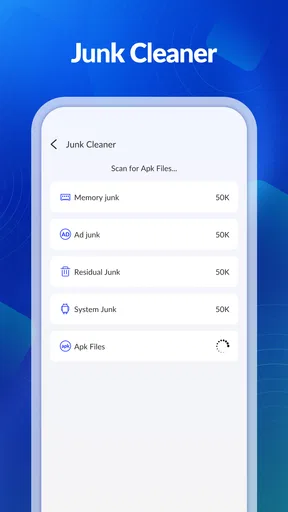
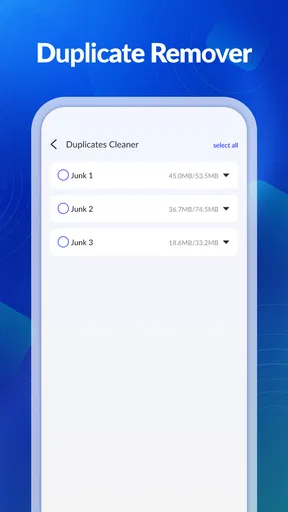
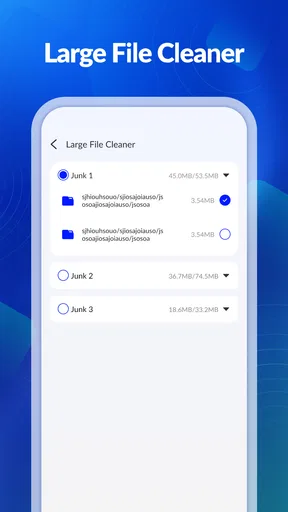
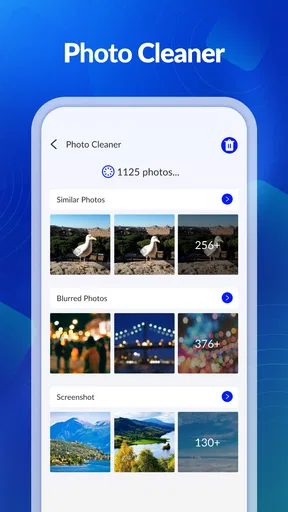
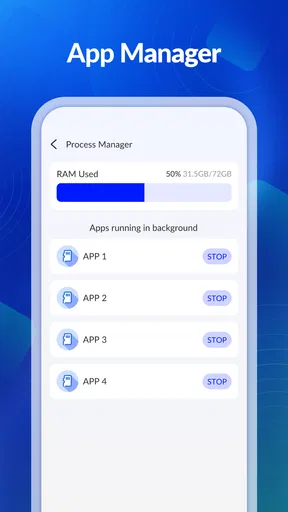
 Analysis by AppCompare
I approached Total Cleaner: Home Launcher as a practical tools app rather than just another cleanup utility. Its central idea is to bring storage cleaning and file management into the home-screen experience, which can be useful when a phone feels crowded or difficult to organize. After spending time with that concept, my view is mixed but positive: it has a clear everyday purpose, yet its value depends heavily on whether you prefer a simplified home screen over the fuller controls found in a traditional file manager.
The app is free, aimed at everyone, and developed by Dev Rez. It runs on Android devices using version 7.0 or later, while the current release is 1.0.6. Its average rating sits at 3.7 from over 900 ratings, and it has passed 100 thousand installs. Those figures suggest a modest but real user base rather than a universally established tool. I would recommend trying it if you want storage tasks closer to your main screen, but I would not treat it as an automatic replacement for the file tools already built into every phone.
How the home screen affects readability and navigation
The most interesting part of the design is the decision to combine a launcher-like starting point with storage maintenance. Instead of opening a cleaner only when the phone warns about low space, the app places that concern near the beginning of the phone experience. That can make the condition of your storage more visible and may reduce the number of steps needed to reach files that need attention.
For me, this approach works best when I am trying to build a simple routine. A home screen that keeps file organization nearby encourages a quick check before downloads and photos pile up. The benefit is not that the app magically understands every file; the benefit is that it gives storage work a more prominent place than a buried system menu usually does.
Readability is also affected by how much information appears at once. A conventional file manager often exposes folders, paths, file types, sorting controls, and actions together. That can be powerful, but it can also be tiring for someone who is not comfortable with technical labels. A launcher centered on cleaning and files can feel less intimidating when the goal is simply to find large clutter or locate something recently downloaded.
There is a trade-off, though. People who already know exactly where their Android folders are may find a launcher-based route slower than opening the system Files app. If you regularly move documents between named folders, rename batches of files, or work with external storage, a dedicated file manager is likely to remain clearer. This app makes the storage area more visible; it does not automatically make every file operation more advanced.
I also think the home-screen concept deserves a short adjustment period. Any app that changes the starting point of a phone affects muscle memory. Someone who relies on a familiar arrangement of icons and widgets may initially feel that ordinary actions have moved. Before making it the permanent home screen, I would test it during a normal day and check whether the cleaner access actually saves time.
Worth Reading Before You Choose

EA SPORTS FC Mobile 26 Is a Bigger Football Game, but It Takes Time

Flipboard Shows What News Apps Must Do Beyond the Feed

Switching to Android Auto Means Rethinking Your Driving Routine

Google Calendar Makes a Crowded Week Easier to Manage

Ludo King Makes the Most of the Minutes Between Plans

Baby Panda World Brings Quick Play to Modern Phones, but Its Game Library Feels Busy
Useful reading habits for a less confusing setup
I found it helpful to treat the main screen as a dashboard rather than a complete file workspace. I would use it to notice that storage needs attention, then open the relevant file view only when I had a specific task. That prevents the home screen from becoming another place where I endlessly browse folders without deciding what to keep.
Another practical habit is to review one category or purpose at a time. For example, I might deal with downloaded installers first, then screenshots, then documents. Even when an app presents cleanup as a quick action, separating decisions reduces the chance of deleting something merely because its name looks unfamiliar.
This is especially important for users who read slowly, have difficulty distinguishing similar labels, or become overwhelmed by crowded interfaces. A predictable routine is often more useful than a long list of options. The app’s combined focus gives that routine a natural starting point, although the exact comfort level will depend on the phone and the way its interface is displayed.
Motor, visual, and sensory considerations in daily use
From an inclusive perspective, the strongest idea here is reducing the distance between the home screen and storage tasks. Fewer navigation stages can help people who find repeated tapping tiring or who have difficulty remembering where a system setting is located. It can also help during short interactions, such as checking space before recording a video or finding a file while standing in a busy place.
That does not mean the app solves every motor challenge. A storage tool still requires accurate selection, and cleanup decisions can involve several separate actions. If someone has limited precision, accidental taps are a real concern with any interface that places important file actions near frequently used areas. I would approach deletion carefully, use the largest comfortable display settings available on the phone, and avoid rushing through a review just because the app makes it easy to reach.
For users with low vision, the practical question is not simply whether the app is clean-looking. It is whether text, icons, contrast, and touch targets remain comfortable with the device’s own display settings. Android’s magnification, font scaling, contrast options, and screen reader tools may improve the experience, but I would test the actual combination on the phone rather than assume every screen behaves equally well.
A simplified starting point can reduce visual clutter, yet storage interfaces often contain filenames, thumbnails, categories, and action controls. Those elements may still be difficult to distinguish for someone with color-vision differences or sensory sensitivity. My advice is to inspect a few ordinary folders before committing to the launcher. If the visual grouping makes files easier to identify, the app may be helpful; if it replaces familiar high-contrast system screens with denser cards, the change may work against you.
People who use a screen reader should be equally practical in their testing. The app’s purpose is understandable from its home-screen and file-management role, but the usefulness of that role depends on whether controls are announced in a sensible order and whether file actions have clear labels. I would not rely on the cleaner for important documents until basic navigation, selection, and confirmation work comfortably with the accessibility tools already enabled on the device.
Why the combined design can help some users
There is a subtle benefit for people who struggle with task switching. In a standard setup, cleaning storage may involve leaving the home screen, finding a utility, interpreting a report, and then locating the file manager for follow-up. Bringing the two purposes together can make the sequence easier to remember: start at home, inspect storage, then manage the files that need attention.
This can also suit older phones shared within a household, where one person may not want to explain several different routes for deleting downloads or locating documents. A visible starting point is easier to describe than a series of hidden menus. I would still set a household rule that nobody deletes another person’s files without checking, because accessibility and simplicity should not come at the cost of ownership mistakes.
The same design may be less suitable for someone who needs a highly customized home screen. If you depend on a particular arrangement for orientation, use many widgets, or distinguish apps by carefully chosen positions, changing the launcher may add cognitive work rather than remove it. In that situation, keeping the familiar launcher and using a separate storage tool could be the more inclusive choice.
Situational access: where the app earns its place
I can see the app being most useful before a trip, during a busy workday, or when a phone is repeatedly running out of room. Imagine preparing to record a family event: you open the home screen, check storage, remove files you have already backed up, and then return to the camera. The value is not spectacular automation; it is having the relevant task close at hand when time and attention are limited.
It may also help after a period of heavy messaging. Images, documents, and downloads often accumulate because they arrive in different conversations and apps. A home-screen entry point makes it more likely that you will remember to review the phone instead of waiting for a warning. I would use it as a weekly or fortnightly check, not as permission to delete everything that looks old.
For people who travel or work in places with poor connectivity, local file access can be more important than cloud-based organization. A storage-focused home screen gives the phone’s own contents greater prominence. That said, I would still keep a separate backup habit. A cleaner is a decision aid, not a backup strategy, and removing a file from the device is not the same as preserving it somewhere safe.
The app can also be useful for someone who repeatedly asks, “Where did that download go?” A file manager placed near the home screen reduces the need to remember which browser, messaging app, or system menu created it. This is a small improvement, but small improvements matter when a person is dealing with fatigue, distraction, or a temporary injury that makes extended searching frustrating.
On the other hand, situational access is not the same as universal access. If you are using a work-managed phone, a family device with strict routines, or a handset whose manufacturer already provides an excellent file dashboard, adding another home layer may complicate support. The best choice is the one that leaves you with fewer steps and fewer uncertainties, not necessarily the one with the broadest feature list.
How it compares with familiar alternatives
The usual alternative is the file manager that comes with Android or the phone manufacturer’s interface. That option generally wins when you need direct folder control, detailed file operations, or a layout you already understand. Total Cleaner’s advantage is proximity: it treats storage and file access as part of the home experience instead of a separate utility.
Dedicated cleaner apps are another comparison point. They may focus more narrowly on temporary files, duplicate content, or storage reports, depending on the product. This app’s identity is broader because it combines a home-screen role with file management. I prefer that direction for people who want one visible place to begin, but users seeking specialized analysis may find a purpose-built cleaner more informative.
Cloud storage apps are better when the main goal is synchronization, sharing, or access across several devices. Total Cleaner is more relevant when the immediate problem is the organization of the phone itself. I would not choose it instead of cloud storage for collaboration, and I would not choose cloud storage instead of it when I simply need to inspect local downloads quickly.
That distinction helps avoid unrealistic expectations. This is not a magic button that makes a full phone permanently tidy. Its practical strength is behavioral: by placing cleaning and file management in a prominent location, it may make maintenance easier to remember. If you already maintain excellent storage habits, the change may feel unnecessary.
Remaining barriers and decisions worth making carefully
The first barrier is trust. Any app that helps manage personal files needs to be approached with care, even when the interface looks simple. I would read every confirmation, inspect filenames and locations, and avoid deleting items whose purpose is unclear. Photos, exported documents, app backups, and offline media can all look like ordinary clutter when viewed quickly.
The second barrier is the possibility of interface friction after switching launchers. A home screen is not a disposable screen; it shapes how every other app is reached. If the new arrangement makes essential apps harder to find, the storage benefit may not justify the daily cost. I recommend trying the setup during a low-risk period and noting whether common actions become easier or slower.
The third issue is the difference between “clean” and “accessible.” A sparse layout can be visually pleasant but still difficult for someone who needs larger text, strong contrast, spoken labels, or a stable arrangement. I would judge the app with the user’s real settings enabled, including enlarged text and accessibility services, rather than evaluating it only with default display options.
There is also a learning barrier for households with more than one user. One person may understand the file categories immediately while another may interpret them differently. A short shared routine helps: review the location, confirm ownership, and only then remove anything. This is a concrete way to make the app safer for people who have different levels of technical confidence.
Finally, the app may not be the right choice for power users. If your work depends on advanced folder permissions, detailed sorting, network locations, batch renaming, or careful synchronization, a specialized file manager should remain your main tool. I would use Total Cleaner as a convenient front door only if it genuinely improves access, not because combining two functions sounds efficient in theory.
My inclusive verdict on Total Cleaner
After weighing the convenience against those limitations, I see Total Cleaner as a focused experiment in making storage care part of everyday navigation. Its best audience is someone who wants a straightforward starting point for checking space and finding local files, especially when a conventional utility feels hidden or overly technical. The free price removes an easy barrier to trying it, and the everyone rating makes its intended audience broad.
My recommendation is conditional but clear: test it as a home-screen routine, not as a complete replacement for every file tool. Give yourself time to check whether the layout works with your font size, contrast preferences, screen reader, magnification, and preferred touch method. If it reduces searching and makes storage maintenance easier to remember, it is doing something genuinely useful.
I would skip it if your current launcher already gives you excellent file access, if you need advanced file operations, or if changing the home screen would disrupt an arrangement you rely on for orientation. In those cases, the built-in file manager or a specialized alternative may be more predictable. Accessibility is personal, and a simpler interface is not automatically a better one.
For everyone else, the most sensible workflow is conservative: use the home screen to identify a task, inspect each file group carefully, keep backups separate, and treat deletion as an intentional decision. That approach brings out the app’s real strength without overpromising. Total Cleaner is most valuable when it turns storage maintenance from an occasional emergency into a visible, manageable part of using your phone.
Pros
- Simple layout makes essential apps easy to reach.
- Large icons improve visibility for users with limited eyesight.
- Minimal design can reduce visual distractions on the home screen.
- Useful option for older users who prefer straightforward navigation.
- Lightweight launcher may run comfortably on modest devices.
Cons
- Fewer customization options than most modern launchers.
- Some features may require permissions that feel intrusive.
- The simplified interface may feel too basic for power users.
- Compatibility can vary across Android brands and versions.
- Ads or upgrade prompts may interrupt the otherwise clean experience.
FAQs for Total Cleaner: Home Launcher
What is Total Cleaner: Home Launcher, and what does it do?
Total Cleaner: Home Launcher is an Android customization and utility app designed to replace or enhance your phone’s standard home screen. It can organize applications, provide a cleaner layout, and may include tools intended to improve device management, such as shortcuts, search functions, or cleaning features. The exact options can vary by device and app version, so review the current Google Play listing before installing.
Is Total Cleaner: Home Launcher safe to install and use?
The application should be downloaded only from a trusted source, preferably its official Google Play Store listing. Before installation, check the developer name, recent reviews, update history, privacy information, and requested permissions. Because a launcher can become part of the phone’s main interface, users should be comfortable with any access it requests and avoid granting permissions that seem unnecessary for its advertised features.
Will Total Cleaner: Home Launcher slow down my phone or drain the battery?
A launcher runs in the background more often than an ordinary application because it manages the home screen, app shortcuts, and navigation experience. On newer devices, the impact may be minor, but older or entry-level phones could experience slower animations, additional memory usage, or increased battery consumption. After installation, monitor battery settings and performance, and disable optional visual effects or tools if the phone feels less responsive.
Can I customize the home screen and return to my original launcher?
The main purpose of Total Cleaner: Home Launcher is to offer an alternative home-screen experience, so customization may include arranging icons, changing layouts, using shortcuts, or adjusting visual settings. Android generally allows users to switch between installed launchers through Default Apps or Home App settings. If you decide not to continue using it, select your previous launcher there and uninstall the application afterward if desired.
Does Total Cleaner: Home Launcher require payment, advertisements, or special permissions?
Availability of premium features, advertising, and permission requirements can change between versions, regions, and device models. Check the app’s store page for in-app purchases and read the privacy policy before downloading. Pay particular attention to permissions involving notifications, accessibility, storage, usage data, or displaying over other apps. Only enable optional access when you understand why it is needed and consider whether the benefits justify the requested permissions.


